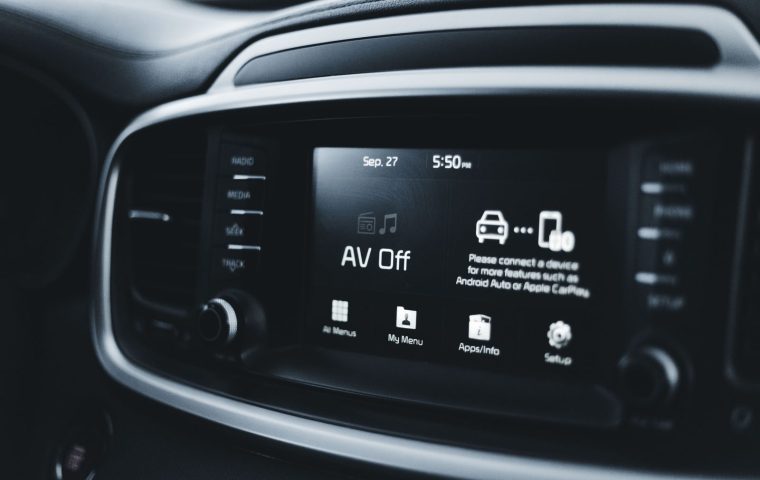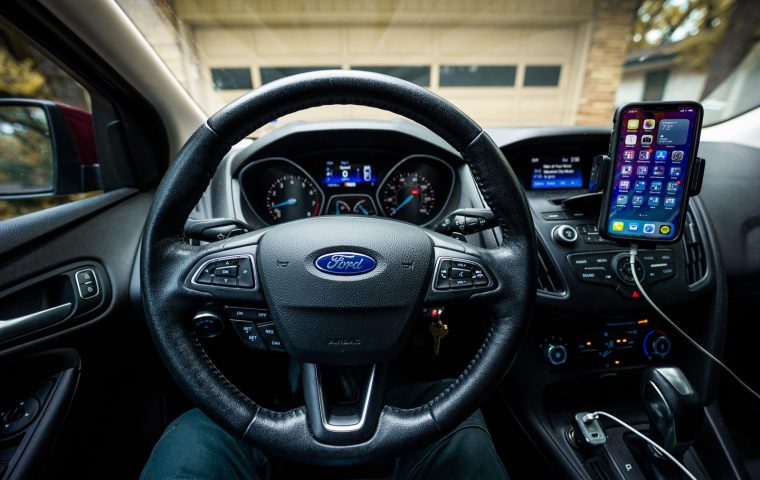

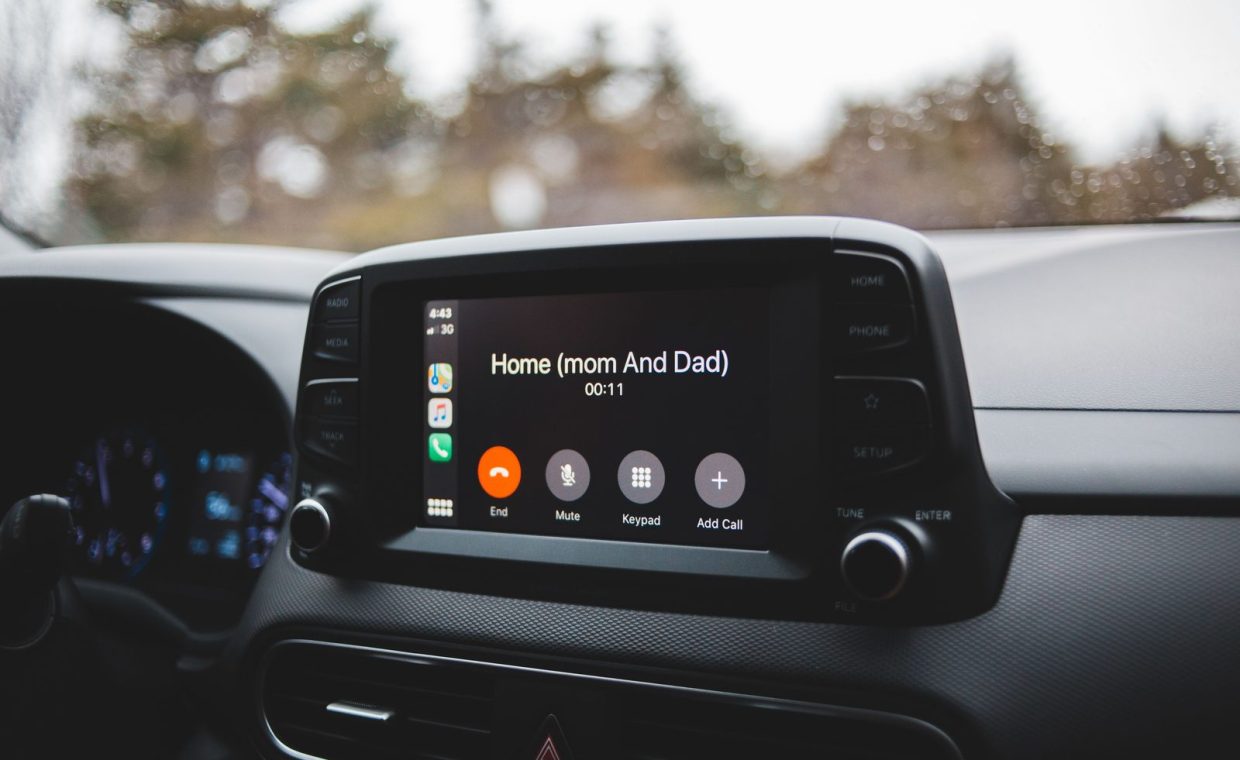
Quan slid into a new crossover, plugged his phone into the USB port out of pure habit, watched CarPlay load, and figured that was that. Then someone mentioned the car supported wireless, so he unplugged the cable and waited for the magic to happen. Nothing happened. He spent the next two weeks fighting it. Some mornings it connected instantly. Other mornings he sat there poking at his phone while the climate system hummed and the connection just refused to land.
That gap between "it works perfectly" and "it works when it feels like it" is the whole story with wireless phone projection. The technology is genuinely good now, and when it behaves, you never want to touch a cable again. When it misbehaves, it feels broken in a way a wired connection never does.
The good news is that almost every flaky wireless setup traces back to a handful of fixable causes. Walk through these steps in order and you will land on a connection that fires up before you have your seatbelt clicked.
Confirm Your Car Actually Supports Wireless
This sounds obvious, but it trips up more people than anything else. A car can support wired CarPlay or Android Auto and have zero wireless capability, even on a fairly recent model. The USB port working does not mean the wireless side exists.
Check your owner's manual or the manufacturer's spec sheet for your exact trim and model year. Some brands added wireless mid-cycle, so a 2021 might have it while the otherwise identical 2020 does not. A dealership parts desk can confirm by VIN if you want to be certain.
Look in your infotainment settings for a "wireless" or "Bluetooth devices" entry tied to phone projection. If the only way to start CarPlay or Android Auto is by plugging in a cable, your head unit is wired-only and no amount of troubleshooting will change that.
Get the Pairing Right the First Time
Wireless projection rides on two radios at once. Bluetooth handles the initial handshake and your phone calls, and Wi-Fi carries the heavy data for the screen. Both have to pair, and skipping the Wi-Fi half is the classic rookie error.
Start with the car parked and the phone unlocked. On the infotainment screen, open the phone projection or device menu and choose to add a new device. On your phone, go into Bluetooth settings and select the car when it appears.
Here is the part people miss. When your phone pops up a prompt asking to allow CarPlay or Android Auto, or asking to join the car's Wi-Fi, say yes to all of it. Decline one of those prompts and you get Bluetooth audio with no projected screen, which feels like a half-broken system.
Pair while sitting still in a quiet spot, not while rolling out of a packed parking garage. The first pairing sets up the trusted connection that every future drive reuses, so it is worth two unhurried minutes.
Update Everything That Can Be Updated
Stale software is the quiet killer of wireless reliability. Phone makers and automakers both ship fixes for connection dropouts constantly, and a year-old version on either side can be the entire problem.
Update your phone's operating system first, since that is the easiest. Then check whether your car has a software update waiting, either over the air or through a dealer service visit. I have seen a single head unit update turn a car that dropped CarPlay twice a week into one that never misses.
If you run an Android phone, also make sure the Android Auto app itself is current through the app store, separate from the system update. The app and the OS update on different schedules, and both matter.
Clear Out the Bluetooth Clutter
Cars get confused when several phones are paired and two of them are in the cabin at once. Your phone and your partner's phone both reaching for the same head unit is a recipe for a connection that grabs the wrong device or none at all.
Open the car's saved device list and delete anything you do not actively use. Old rental phones, a friend's device from one road trip, a tablet you paired once. On the phone side, "forget" the car too, then re-pair clean so both sides agree on a fresh connection.
If two paired phones ride together daily, turn off auto-connect or Bluetooth on the passenger's phone before you drive. Otherwise the car may bond to whichever phone wakes up first, and you will swear the system is broken when it is just being loyal to the wrong device.
Diagnose the Dropouts and Slow Connects
Once you are paired, the remaining complaints fall into a few buckets. Matching the symptom to the cause saves you from random flailing.
| Symptom | Likely cause | Fix to try first |
|---|---|---|
| Takes 30+ seconds to connect | Phone radios still waking up | Turn Wi-Fi and Bluetooth on before entering the car |
| Audio cuts out briefly | Wi-Fi interference or weak phone radio | Move the phone off the floor, out of a metal tray |
| Screen freezes, audio keeps playing | Head unit software hiccup | Restart the infotainment system |
| Connects, then drops in a minute | Battery saver killing background data | Disable low-power mode while driving |
| Never connects wirelessly at all | Wi-Fi half never paired | Re-pair and accept the Wi-Fi prompt |
Battery saver mode deserves a special mention. On both platforms, aggressive power saving can throttle the background data the connection depends on, so the screen freezes or drops even though Bluetooth still shows connected. If your dropouts cluster around low-battery moments, that is your culprit.
Phone placement matters more than people expect. A phone buried in a center console bin lined with metal, or sitting on a wireless charging pad that runs hot and forces the phone to throttle, can weaken the Wi-Fi link enough to stutter. A cheap vent mount often fixes "random" audio glitches.
When to Just Use the Cable
I love wireless, but I keep a good USB cable in the door pocket of every car I own. If you are about to start a long trip, or you are heading somewhere with spotty connectivity, a wired connection is rock solid and charges the phone at the same time.
Wireless also leans harder on the battery because both radios stay active, and that adds up on a road trip. The wired side is the reliability backstop, not an admission of defeat. Treat it as a tool, not a failure.
This same "have a manual backup" instinct is worth applying broadly to in-car tech. The same way you should not blindly trust a system to do everything for you, it pays to understand the false sense of safety some driver assist features create and keep your own judgment in the loop.
Getting More Out of the Connection Once It Works
A stable connection is the floor, not the ceiling. Once projection fires up reliably, spend a few minutes setting up the parts you will actually touch every day, like default navigation, your music app, and message read-aloud.
Plenty of buyers fixate on flashy screens they never use while ignoring the basics that make a commute smoother. It is worth knowing which infotainment features genuinely earn their place versus the ones that look good in a showroom and gather dust after a week.
One more seasonal note for EV and plug-in owners. Cold mornings already stress the battery, and running wireless projection plus a charging pad plus cabin heat all at once nibbles at your usable range. If winter range is tight, the same habits in these cold weather range strategies apply, and going wired drops one small load off the system.
Confirm your car supports wireless, pair once while parked and accept every prompt, keep phone and car software current, clear out stale paired devices, and match dropouts to their cause instead of guessing. Keep a cable handy as your reliable backup.
Why does my wireless CarPlay take so long to connect each time?
Usually the phone's Wi-Fi and Bluetooth radios are still waking from sleep when you get in. Turn both on, or just unlock the phone, before you sit down. A stubbornly slow connect can also mean a pending phone or head unit software update.
Can I add wireless projection to a car that only has wired CarPlay or Android Auto?
Sometimes. A small plug-in adapter, priced around $70 to $100, sits between your phone and the USB port and converts a wired-capable head unit to wireless. It will not work on a car with no projection support at all, only on one that already does it through a cable.
Does wireless projection drain my phone battery faster than plugging in?
Yes, noticeably. Both the Bluetooth and Wi-Fi radios stay active the whole drive, and there is no charging happening. On short trips it barely registers, but on a long highway run a wired connection keeps the phone topped up while it works.
Wireless phone projection has crossed the line from gimmick to genuinely useful, and once you have it dialed in, the daily friction of grabbing a cable just disappears. Work through these steps the next quiet evening you have, and you will spend a lot less time staring at a frozen screen in the driveway. Set it up once with patience and your morning commute starts with music already playing instead of a settings menu.